 CoreAxis School ERP
Getting Started · Chapter 1
About the app
School eRegister by CoreAxis is the Android app for schools that use CoreAxis. Staff use it for the daily work of the school: fee collection, attendance, marks, homework, expenses, leave and notices. Parents and students use it to see fees, attendance, results and homework, and to pay fees. The app works on the same school data as the website at https://coreaxis.info, and much of the daily work can be done without internet. The phone saves the changes and sends them to the school server when it is back online.

Who uses the app
Everyone signs in with their own account. The app shows each person only the tabs and screens that their role can use. The examples in this manual come from the Demo Public School, Patna.
- Admin / Principal
- The whole school. Bottom tabs Home, Students, Finance, Academics and More. They can collect fees, admit students, check UPI / bank claims, see reports, mark attendance, post notices and approve staff leave. Demo school: Satyajeet Kr. Singh (Principal / Director) and the Administrator account.
- Accountant
- The fee desk on the phone. Bottom tabs Home, Fees, Expenses and More. Collect fees, share receipts, check UPI / bank claims and cheques, record expenses and see the ledger and defaulters. Demo school: Rakesh Agarwal.
- Teacher
- Their own classes. Bottom tabs Home, Attendance, Academics and More. Mark attendance, enter marks, give homework, see the timetable and substitutions, decide on leave requests from parents, and apply for their own leave. Demo school: Amit Kumar Mishra, class teacher of VI-A.
- Student / Parent
- The student portal. Bottom tabs Home, Attendance, Results, Fees and More. See dues and receipts, pay by UPI / bank transfer, see attendance and results, take online exams, read homework and notices and ask for leave. A parent with two or more children in the school can add each child on the same phone. Demo student: Aarav Sharma, VI-A.
One school, one set of data
The app and the website use the same school data. A fee collected in the app appears on the website Fee Desk and in its reports after the phone syncs, and a notice posted on the website appears in the app. Some work is done only on the website, for example school settings, the fee structure, report-card design and creating online exams. Each chapter of this manual says when a task needs the website.
Install the app (example: the class teacher's Android phone)
The app is free to install from Google Play. The school gives each staff member a login; parents sign in with the child's admission number and date of birth.
Open the Play Store on the Android phone.
Search for School eRegister and choose the app by CoreAxis. You can also open https://play.google.com/store/apps/details?id=info.coreaxis.erp on the phone.
Tap Install and wait for the download to finish.
Tap Open. The sign-in screen opens with the tabs Official / Teacher and Student / Parent.
The first screen after installing the app. Sign in as described in the chapter Sign in, PIN and sign out. The first sign-in needs internet, because the app downloads the school's data to the phone.
TipThe app needs Android 7.0 or newer.
TipUse the email address and password that the school office gave you. Teachers and office staff use the same login on the website and in the app.
TipThe school's own name and logo appear inside the app after sign-in.
Updates
Google Play updates the app like any other app. When a newer version is out, the app also shows a small Update available strip at the top of the screen with an Update button that opens Google Play. You can close the strip and update later. Rarely, an old version can no longer work with the school server. The app then shows Please update School eRegister with an Update now button. Your data and the changes saved on the phone are kept when you update. The version number is shown at the bottom of the sign-in screen (for example Secure sign-in · v1.0.4) and at the end of the More tab.
Working without internet
After the first sign-in the app keeps a copy of the school's data on the phone, so most screens open even with no signal. Work that you save while offline is kept on the phone in a queue and sent to the school server later. This is called syncing.
When the phone is offline, a grey strip at the top says Offline · data as of the time of the last sync. You can keep working.
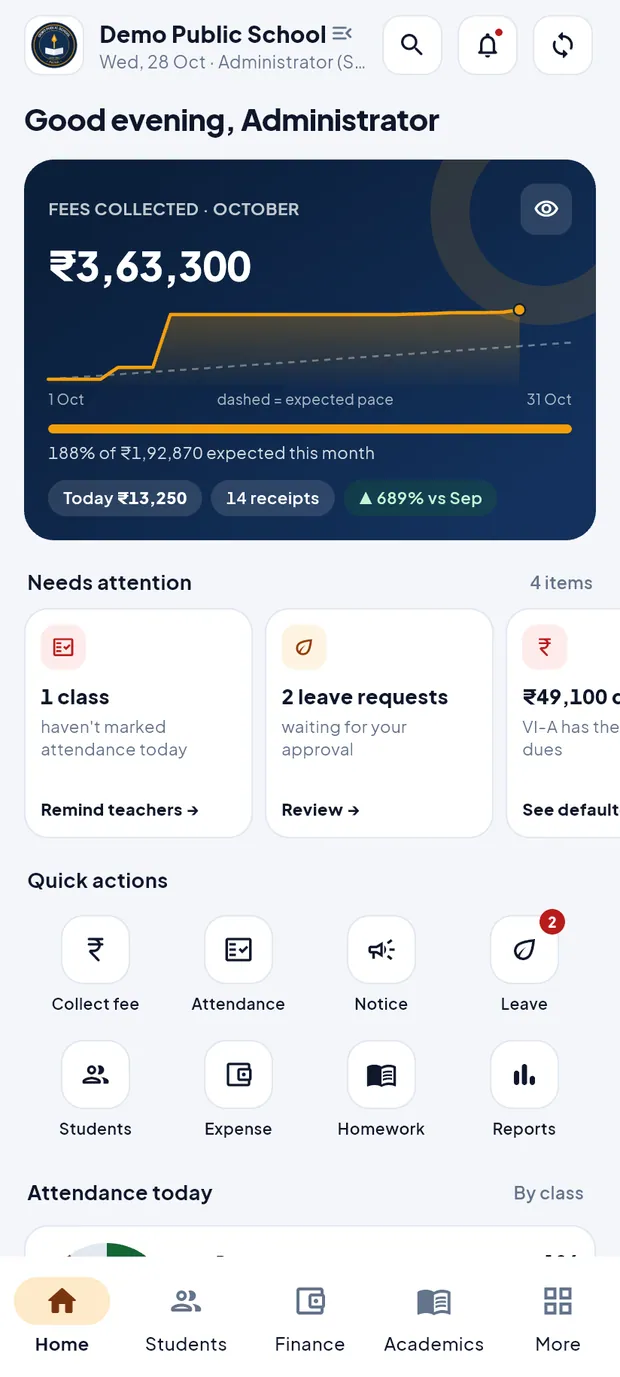
The Home screen header: the round arrows button at the top right is the sync button. Save your work as usual, for example a fee collection or attendance. The sync button shows a number badge: the number of changes waiting on this phone.
When the internet is back, the app sends the waiting changes by itself. It also syncs when you open the app and a few seconds after you save something.
To see what is waiting, long-press the sync button or open More › Sync status. Everything is synced means the school server has all your changes.
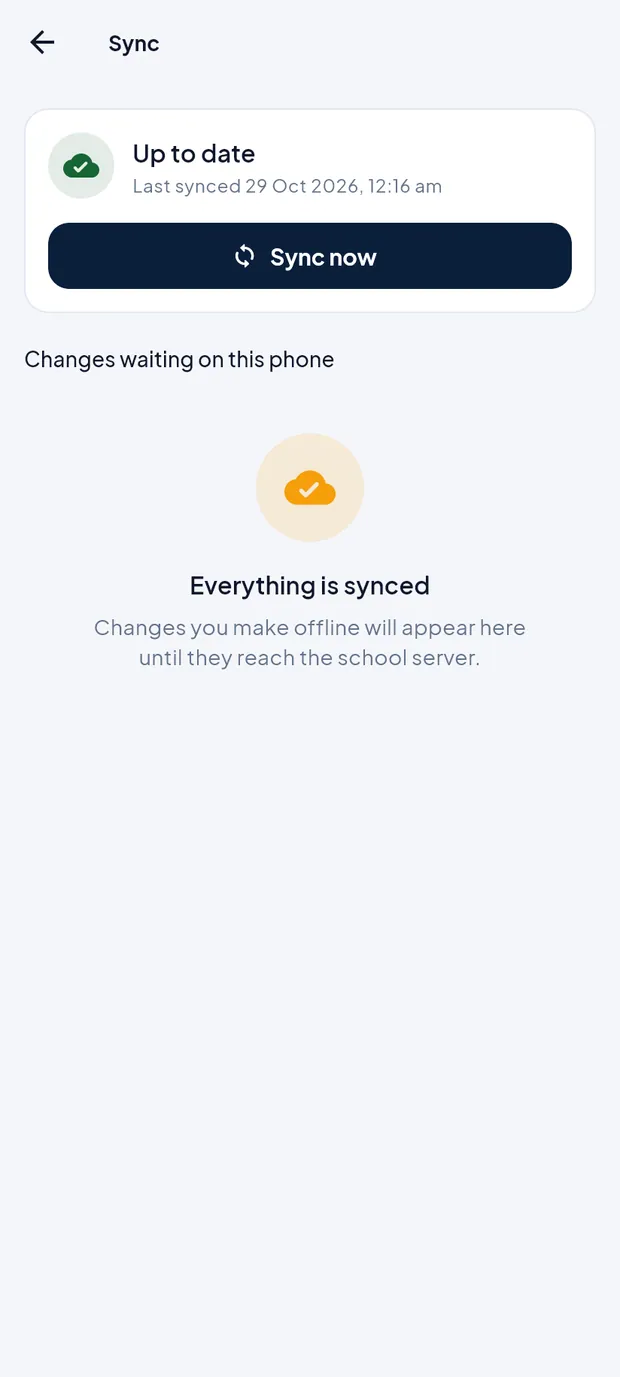
The Sync screen: last sync time, Sync now and the changes waiting on this phone.
TipWorks offline: fee collection and receipts, attendance, marks entry, homework, expenses (add, edit, delete), notices, new admissions and student edits, exams and date sheets, library issue and return, staff and student leave applications and decisions, and search.
TipNeeds internet: signing in, reports and the ledger (they are read live from the school server), UPI / bank claims, cheque decisions, online payment, online exams, admission enquiries, adding staff, substitutions, changing your password, trusted devices and uploading photos.
TipA receipt made offline opens at once and can be shared. Its entry reaches the website when the phone syncs.
ImportantChanges that are still waiting on the phone are lost if you sign out before they sync. Check Sync status before you sign out, or let the app sync first.
Your data on the phone
The school data on the phone is stored in an encrypted database. The app locks itself with your PIN when it starts and after 5 minutes in the background. Signing out removes all school data from the phone. If a phone is lost, the user can use Sign out of all devices from another phone (see Settings, sync and security), or ask the school office to change the password.
Differences from the website
- Menus
- The website has a left sidebar. The app has bottom tabs, a side menu (tap the school name at the top) and a search box that finds any screen or record.
- Fee Desk
- On the website this is Fee Desk. In the app it is Collect fee on the Finance tab (Admin / Principal) or the Fees tab (Accountant).
- Offline
- The website always needs internet. The app keeps working offline and syncs later.
- Sign-in
- Both use the same email and password and the same 6-digit email code on a new device. Only the app has a PIN and fingerprint / face unlock.
- Setup work
- School settings, fee structure, classes and subjects, salary, ID cards and certificates are done on the website.
The screens at a glance
Each role has its own Home screen. The chapter Home screen and menus explains each one.
- Accountant Home
- Collected today, a search box to collect fee, this month and dues pending, and payments to check.
- Teacher Home
- The next period, a reminder to mark class attendance, class figures and today's schedule.
- Student / Parent Home
- The student ID card, attendance, last result, online exams and this month's fee.
Questions
Is there an iPhone app?
No. The app is for Android phones. iPhone users can use the website https://coreaxis.info in the phone's browser.
Does the app cost anything?
The app is free to download. It works for schools that use CoreAxis; the school's subscription covers it.
Can I use the app on two phones?
Yes. Sign in on each phone. Each new phone asks for the email code once. Your work from both phones reaches the same school data.
The app says Subscription expired · read-only. What does it mean?
The school's subscription has ended. You can still see the data, and changes stay on the phone until the school renews. Ask the school office.