 CoreAxis School ERP
Admin & Principal · Chapter 5
New admission and enquiries
Admin and Principal can admit a student directly from the app. The admission is saved on the phone first and the school server gives the admission number when it syncs, so admissions can be taken at a camp or a desk without internet. Admission enquiries lists the requests parents send from the admission form on the school website; you can call the parent, mark the enquiry contacted or rejected, or admit the child. On the website these are under Students › Students (new admission) and Students › Admission Enquiries.

Admit a new student (example: Riya Kumari, Class I-A)
Open the Students tab and tap New admission at the bottom right. (Home › Search › New admission opens the same form.)
Under Student, type the Full name , choose Gender , pick the Date of birth and tap the Category (General, OBC, SC or ST).
New admission form: Student and Class sections. Under Class, choose Class * (Class I-A). Leave Roll no blank to give the next free roll number. Admission date is today; change it if needed.
Scroll to Parents & contact and fill Father's name, Mother's name, Phone (10-digit mobile), Guardian phone, Student email and Address.
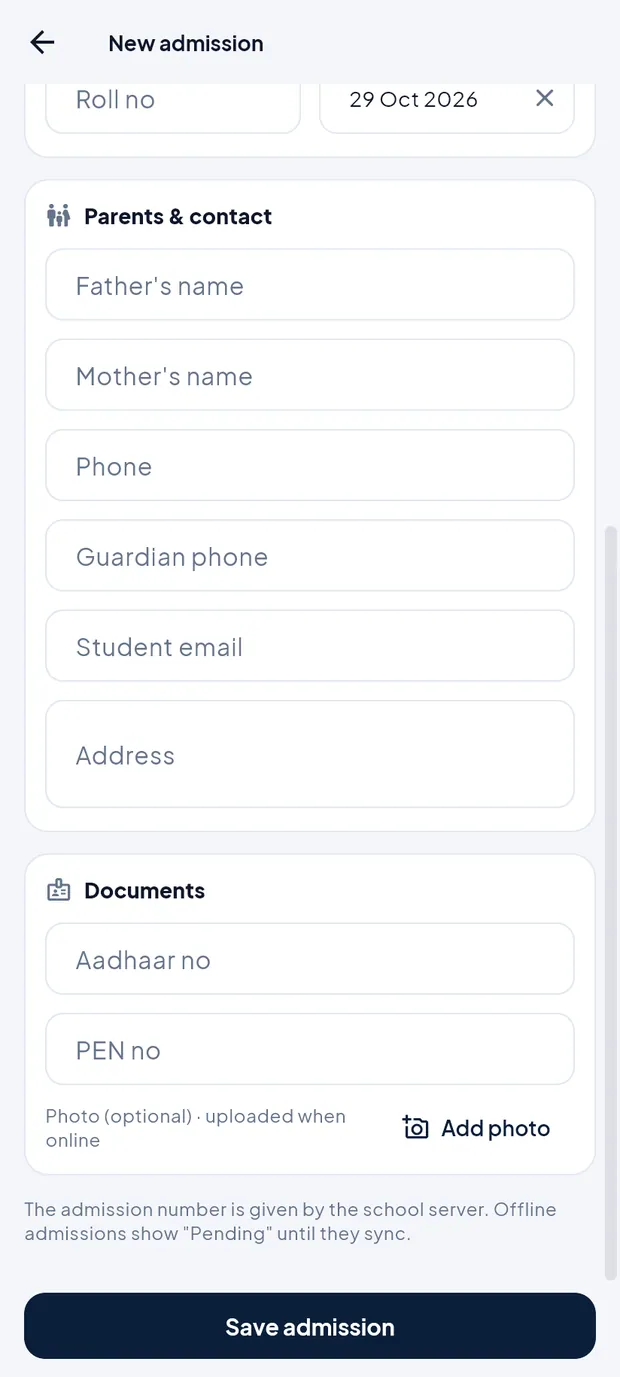
Parents & contact, Documents and the optional photo. Under Documents, type the Aadhaar no (12 digits) and PEN no if you have them.
Tap Add photo to take or choose the child's photo (optional; it is uploaded when the phone is online).
Tap Save admission. Online, the app shows Student admitted · Admission no …. Offline, it shows Saved on phone · will sync and the student appears with admission number Pending until the sync.
TipRed messages under a field say what to fix, e.g. Enter 10 digits starting with 6-9.
TipIf the photo was not added offline, add it later from the student's profile with Change photo (online).
TipFee structure, transport and hostel for the new student are set on the website.
ImportantCheck the class before saving. The fee dues of the student follow the class fee structure.
Admission enquiries at a glance
Open More › Admission enquiries. This screen needs internet.

Six enquiries: 2 New, 1 Contacted, 2 Admitted.
- Search
- Student, parent or phone.
- Status chips
- All, New, Contacted, Admitted, Rejected, each with a count.
- Enquiry row
- Child's name, parent's name, class asked for and the date, with a status tag.
Follow up an enquiry (example: Reyan Ali, Class III)
In Admission enquiries, tap the New chip to see enquiries nobody has handled yet.
Tap Reyan Ali. A sheet opens with the parent's name, phone and class.
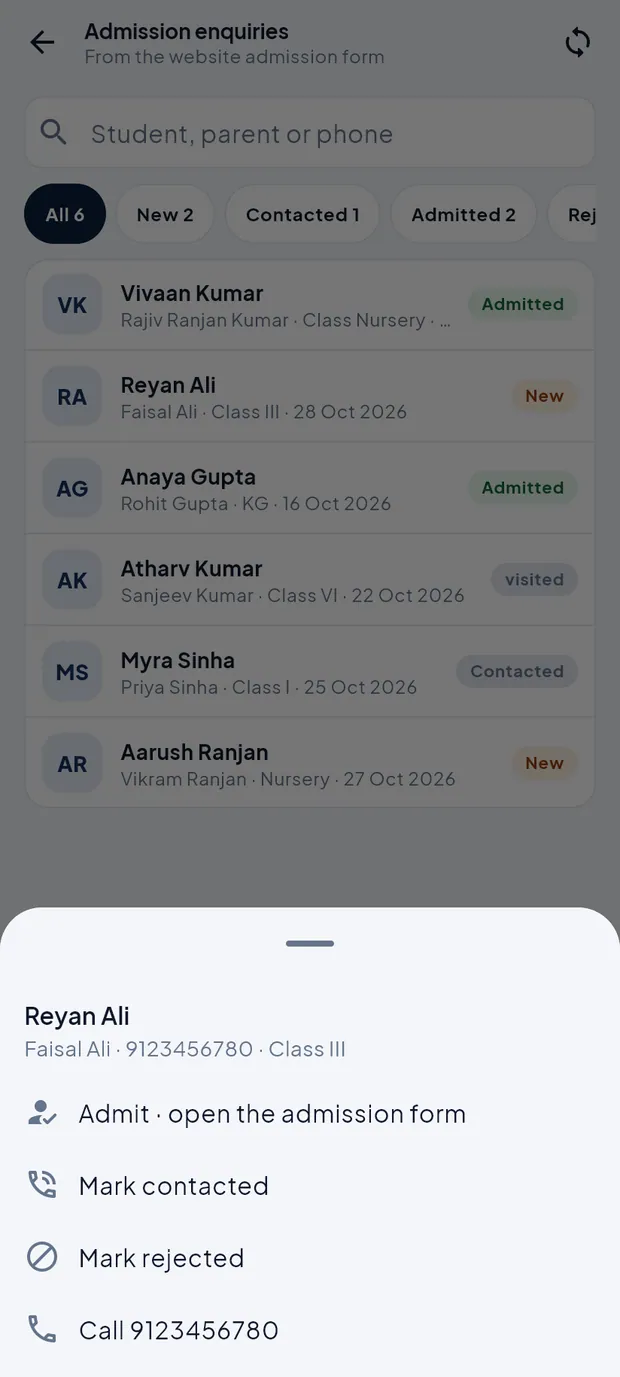
Actions for the enquiry of Reyan Ali (father Faisal Ali). Tap Call 9123456780 to call the parent from the phone.
After talking, open the enquiry again and tap Mark contacted. The tag changes to Contacted.
When the parent confirms, tap Admit · open the admission form. The New admission form opens with the enquiry details filled in. Complete it and tap Save admission.
If the parent is not interested, tap Mark rejected.
TipStatus changes are sent at once and need internet.
TipParents enquire through the admission form on the school website.
Questions
Why does the new student show admission number Pending?
The admission was saved offline. The school server gives the number when the phone syncs. Tap the sync button or pull down to sync.
Can I take a fee from a student whose admission is still Pending?
Sync first, so the student gets an admission number. Then collect the fee as usual.