 CoreAxis School ERP
Student & Parent · Chapter 22
Fees, payments and receipts
The Fees tab shows what the child has paid this session, what is still due, a month-by-month grid, other charges such as the exam form fee, and every receipt. A parent can pay the school's own UPI ID or bank account and then send the UTR number from the app; the office checks it and the receipt appears in the app. When the school has also switched on online payment, the parent can pay by UPI, card or net banking inside the app and get the receipt at once. On the website this is the Fees section of the Student / Parent Portal.
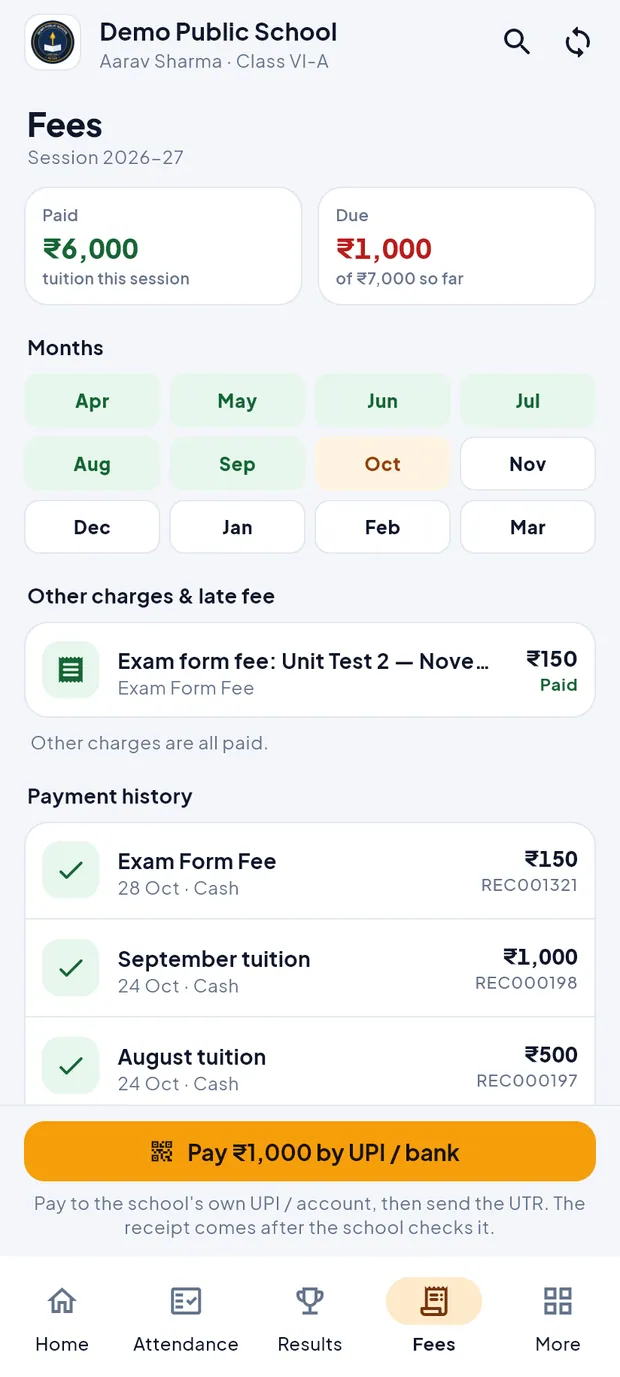
Check what is paid and due (example: Aarav Sharma, session 2026-27)
Tap Fees in the bottom bar.
Fees tab: Paid ₹6,000, Due ₹1,000, the month grid and other charges. Read the two cards at the top: Paid ₹6,000 (tuition this session) and Due ₹1,000 (of ₹7,000 so far). When nothing is left the Due card says All clear.
Look at the Months grid. Green months (Apr to Sep) are paid, the highlighted month (Oct) is due, and white months (Nov to Mar) are not due yet.
Check Other charges & late fee. Here the exam form fee for Unit Test 2 (₹150) shows Paid, and the line under it says Other charges are all paid.
Scroll to Payment history. Each row shows what was paid, the date, the payment mode, the amount and the receipt number (for example September tuition, 24 Oct · Cash, ₹1,000, REC000198).
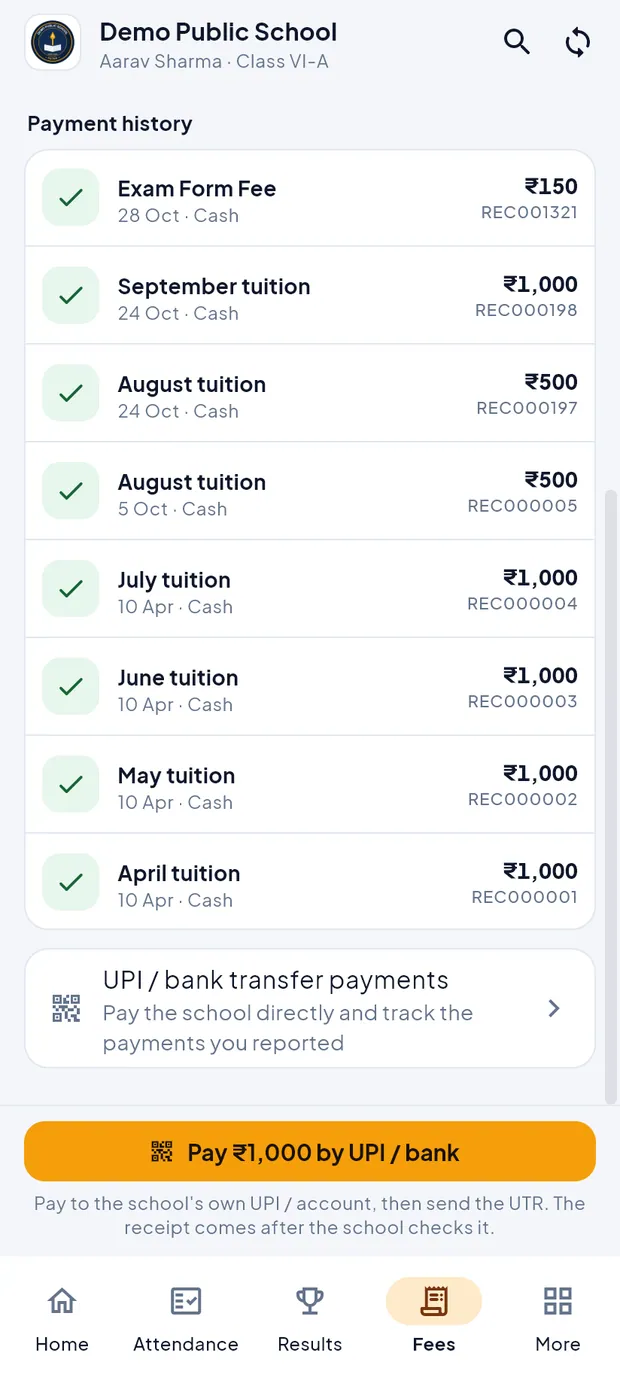
Payment history lists every receipt of the session. Tap a row to open the receipt.
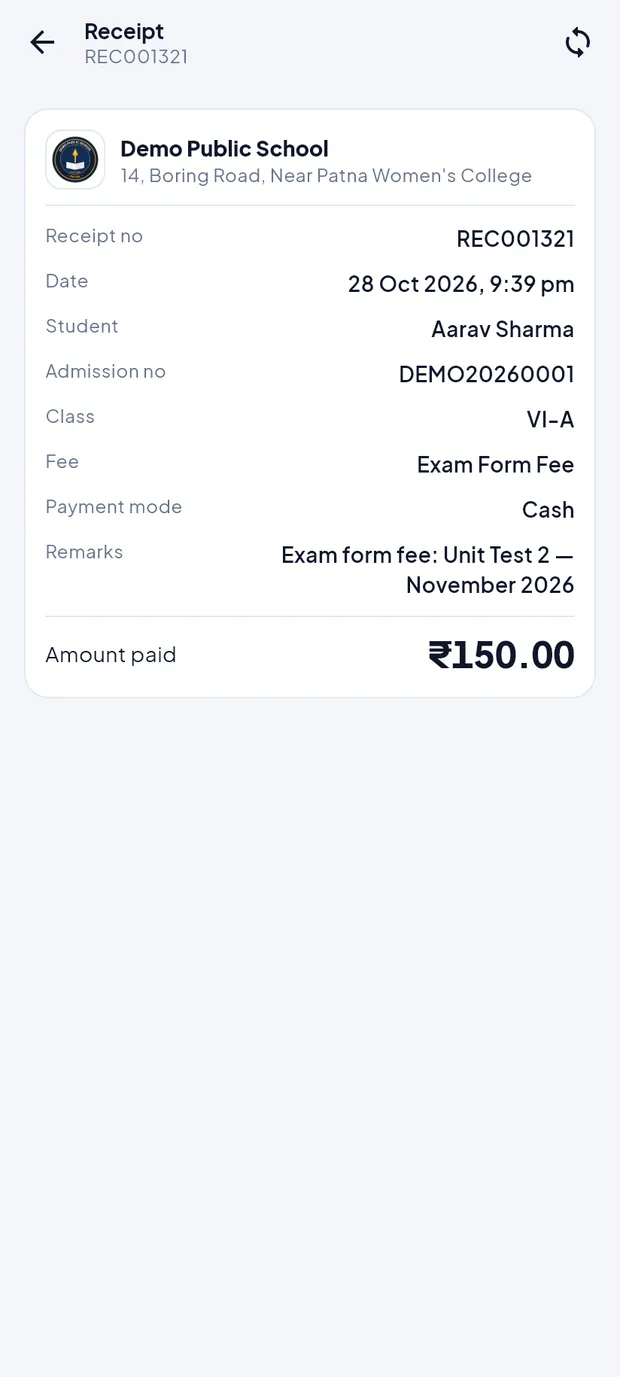
Receipt REC001321: Exam Form Fee, Cash, ₹150.00. Read the receipt: school name and address, Receipt no, Date, Student, Admission no, Class, Fee, Payment mode, Remarks and Amount paid. Tap the back arrow to return.
TipThe Fees tab works offline. It shows the data from the last sync; pull down to refresh when you are online.
TipIf the child has a concession or scholarship, a green line says Concession / scholarship this session: ₹…. All amounts shown are after the concession.
TipIf the school collects fees in instalments, an Instalments list shows each instalment with its due date and Paid or ₹… due.
Pay by UPI and send the UTR (example: ₹1,000 October tuition for Aarav Sharma)
Use this when the school accepts payment straight to its own UPI ID or bank account. You pay from any UPI app, then send the UTR (transaction reference) so the office can match the payment. This needs internet.
On the Fees tab, tap the orange button Pay ₹1,000 by UPI / bank at the bottom (or the UPI / bank transfer payments card above it).
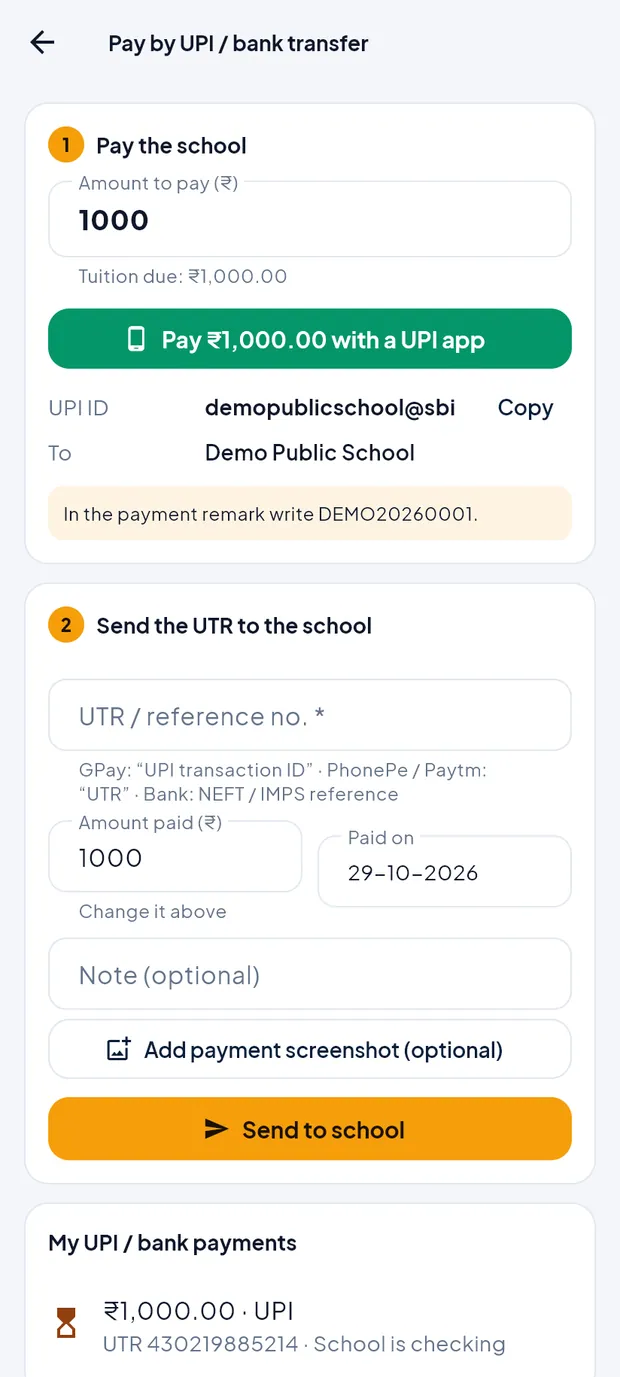
Step 1, Pay the school: amount, UPI app button, UPI ID and the payment remark. Under 1 Pay the school, check Amount to pay (₹). It is filled with the tuition due (1000); change it if you want to pay a different amount.
Tap Pay ₹1,000.00 with a UPI app. Your phone shows its UPI apps (GPay, PhonePe, Paytm …). Pick one and complete the payment there. If no UPI app opens, tap Copy next to the UPI ID (demopublicschool@sbi) and pay to it from any UPI app.
In the payment remark, write the admission number shown in the yellow box: DEMO20260001. This helps the office find the payment.
After paying, copy the UTR from your UPI app. In GPay it is the UPI transaction ID; in PhonePe and Paytm it is the UTR.
Come back to School eRegister and scroll to 2 Send the UTR to the school. Type the number in UTR / reference no. (here 430291887615).
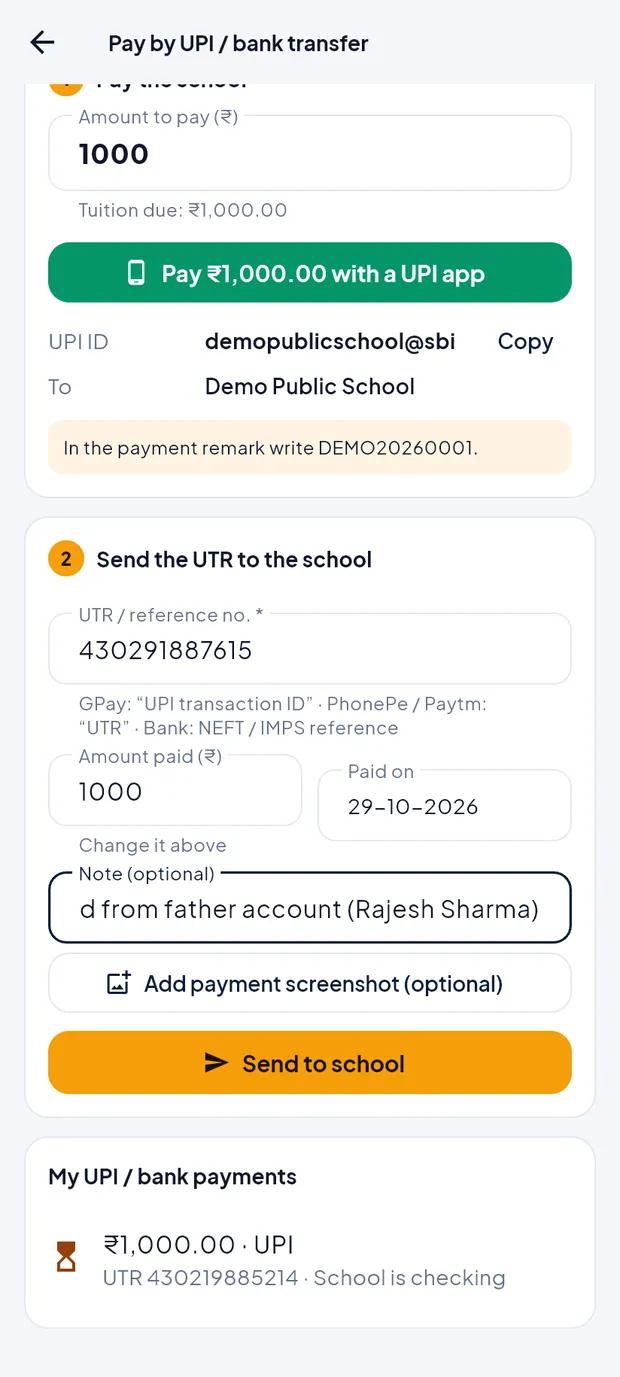
UTR, amount, date and a note filled in. Check Amount paid (₹) (it follows the amount above) and Paid on (today; tap it to choose another date). Add a Note (optional), for example the account it was paid from.
If you like, tap Add payment screenshot (optional) and choose the screenshot of the payment.
Tap Send to school. The app asks Send to the school? and repeats the amount and UTR. Tap Send.
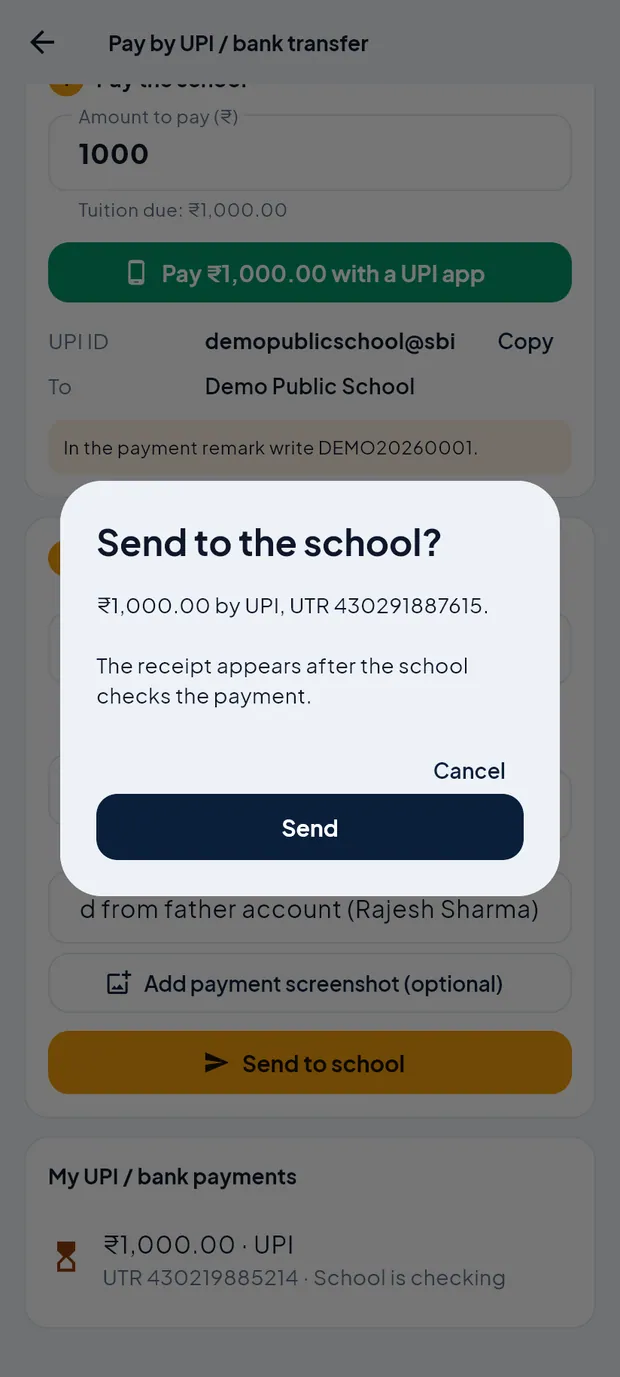
Confirm: ₹1,000.00 by UPI, UTR 430291887615. The app shows Sent to the school: the receipt appears once the office verifies the payment, usually within 1–2 working days. Tap OK.
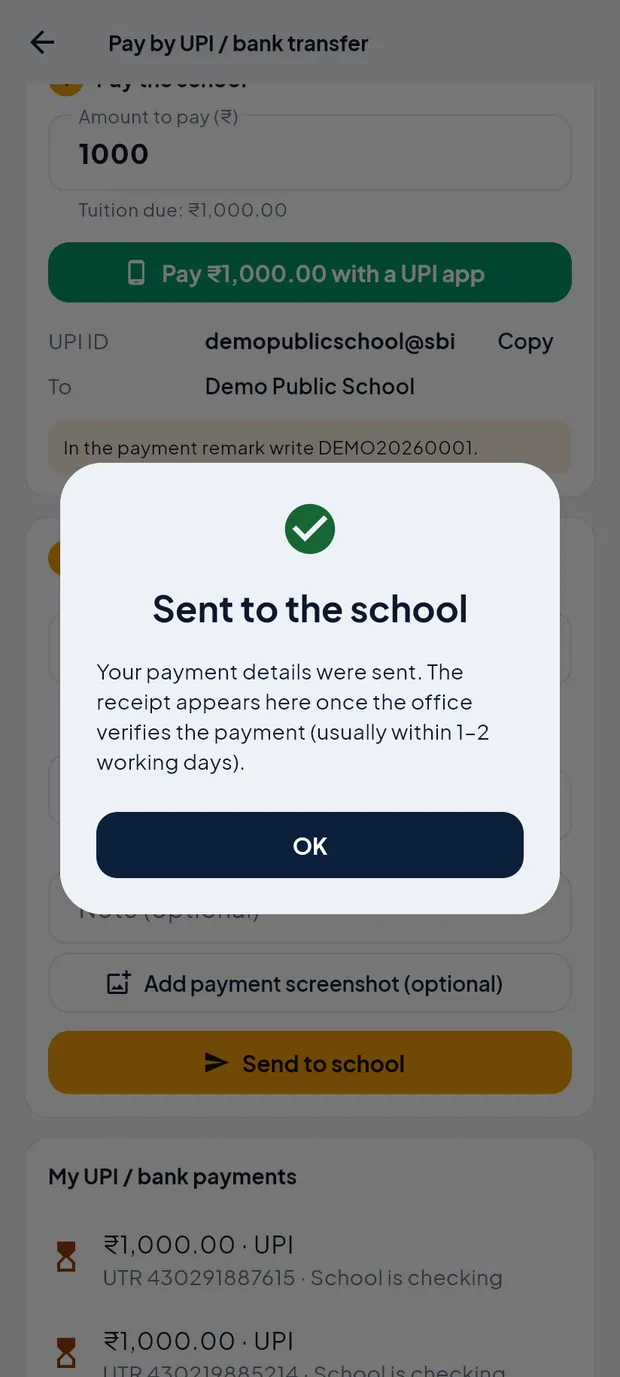
The payment details were sent to the office. Scroll to My UPI / bank payments. The new payment shows School is checking until the office acts on it.
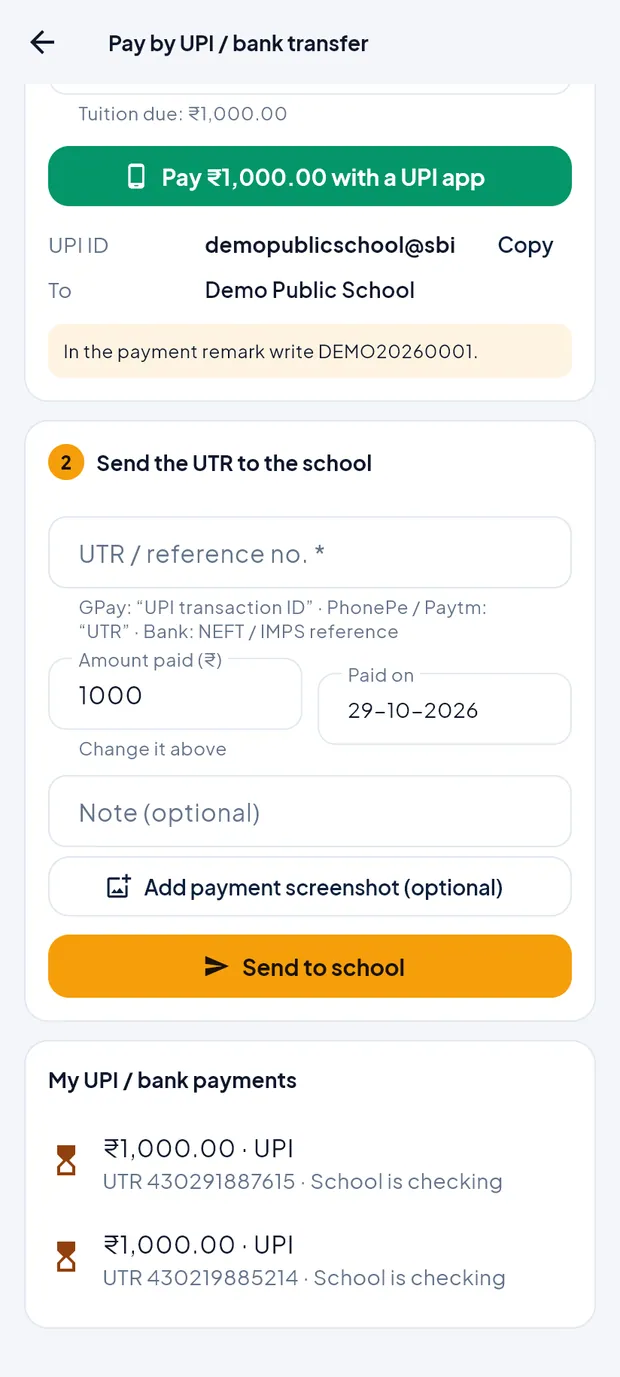
My UPI / bank payments with status School is checking.
TipIf the school also gives a bank account, the screen shows Bank transfer (NEFT / IMPS) with Account name, Account no., IFSC and Bank, each with Copy. In step 2 choose UPI or Bank transfer before typing the reference.
TipThe UTR must be 6 to 30 letters or digits. The same UTR cannot be sent twice (unless the office did not accept it). Paid on can be up to 60 days back, the screenshot can be a JPG, PNG or WEBP of up to 4 MB, and up to 5 payments can be reported a day.
TipSend the UTR only after the money has left your account. The office checks it against the school's bank statement.
ImportantDo not pay the same month twice. If a payment still shows School is checking, wait for the office instead of paying again.
Follow a UPI / bank payment you reported
On the Fees tab, scroll down and tap UPI / bank transfer payments.
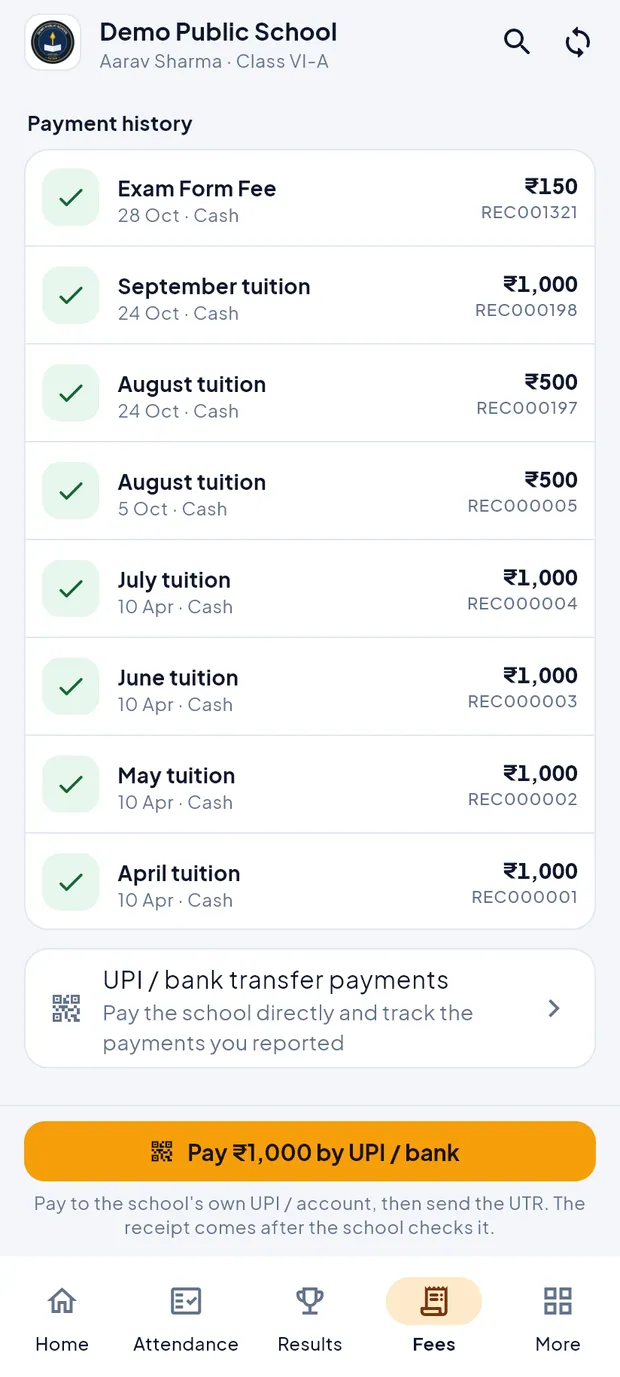
The UPI / bank transfer payments card under Payment history. Scroll to My UPI / bank payments. Each line shows the amount, UPI or Bank transfer, the UTR and the status.
Read the status: School is checking (not checked yet), Received (the office accepted it; the receipt number is shown) or Not accepted (with the office's note).
When it is Received, go back to the Fees tab. The receipt is in Payment history and the month turns green.
TipIf a payment is Not accepted, read the note and contact the school office with the payment screenshot.
Pay online (when the school has switched it on)
Some schools also take payment through an online gateway (Razorpay). Then the Fees tab shows Pay ₹… online at the bottom. Demo Public School uses UPI / bank transfer instead, so there is no screenshot of this.
On the Fees tab, tap Pay ₹… online. The line above the button says Secure payment via Razorpay · UPI / card / net-banking.
Choose UPI, card or net banking in the payment window and complete the payment.
The app shows Payment successful with the receipt number. Tap Done. The receipt appears in Payment history.
TipOnline payment pays the tuition due. Other charges and late fee are paid at the school office; the line above the button tells you when that applies.
TipIf the school offers both, a UPI / bank button sits next to Pay ₹… online.
TipIf the app says Payment not confirmed, note the Payment id it shows and contact the school office. Do not pay again until the office has checked.
Screen at a glance
- Paid
- Tuition paid this session.
- Due
- Tuition still due for the months so far, out of the total due so far. All clear when nothing is due.
- Concession / scholarship
- Shown only when the child has a concession; amounts are after it.
- Instalments
- Shown only when the school uses instalments: each with due date and Paid or amount due.
- Months
- April to March. Green = paid, highlighted = due or part paid, white = not due yet.
- Other charges & late fee
- Exam form fee, transport, hostel and other charges, with late days and Paid / Waived / Due. Pay these at the school office unless the school says otherwise.
- Payment history
- Every receipt: fee, date, mode, amount, receipt no. Tap to open.
- UPI / bank transfer payments
- Opens Pay by UPI / bank transfer and the list of payments you reported.
- Pay ₹… by UPI / bank
- Orange button for paying the school's own UPI ID or bank account. Needs internet.
- Pay ₹… online
- Shown when the school uses online payment. Needs internet.
Questions
Can I see fees without internet?
Yes. Paid, due, months, other charges and receipts are saved on the phone. Paying, sending a UTR and seeing the latest status of a reported payment need internet.
I paid by UPI but forgot to send the UTR. What now?
Open Fees › UPI / bank transfer payments, fill UTR / reference no., the amount and the date you paid, and tap Send to school.
How long does the office take to confirm a UPI payment?
Usually 1–2 working days. Until then the payment shows School is checking.
The home card says online payment is not enabled. Where do I pay?
Use the Fees tab. When the school accepts UPI or bank transfer, the orange Pay ₹… by UPI / bank button is there.