 CoreAxis School ERP
Admin & Principal · Chapter 15
Leave
Every staff member can see their leave balance, apply for leave, withdraw an application and submit a joining report from the app. Admin and Principal approve, reject or return staff leave under Leave approvals; a class teacher sees the leave requests that parents send for the children of the class there. Applying for leave and deciding on leave work offline and sync later; attaching a document needs internet. On the website this is Staff › Leave Management (teachers and accountants: Me › My Leaves).
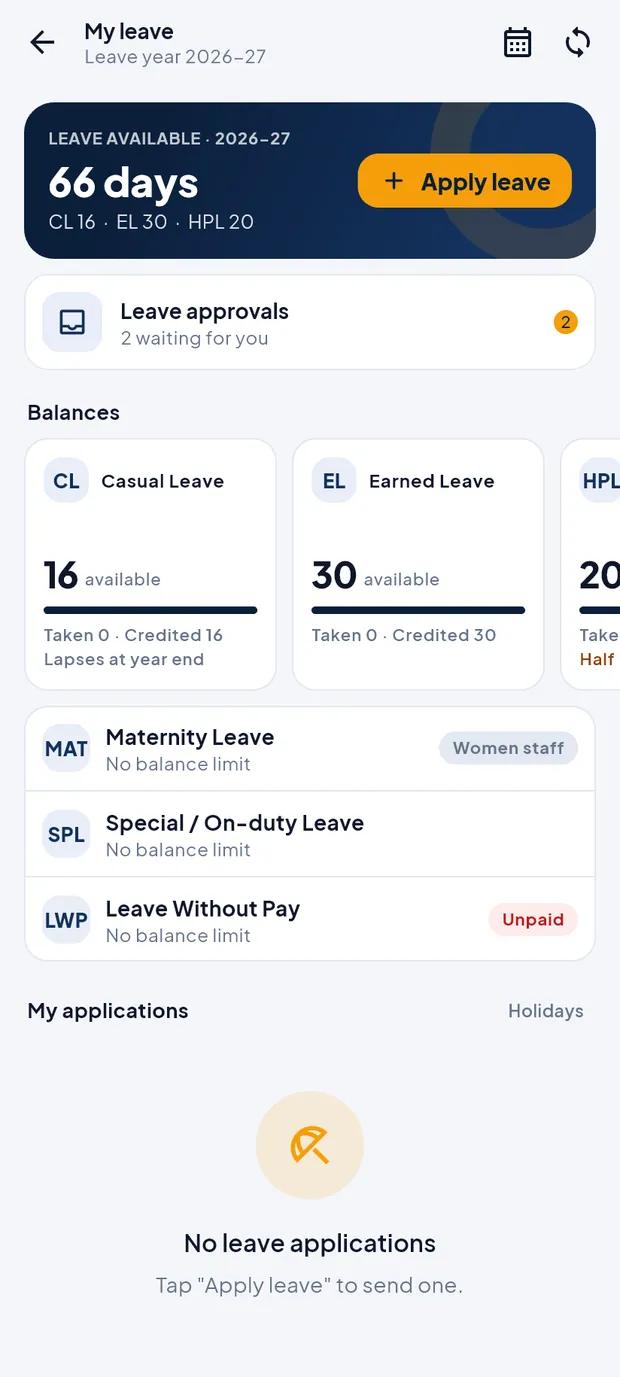
My leave at a glance
Open More › My leave (or Academics › My leave).
My leave for leave year 2026-27: 66 days available.
- LEAVE AVAILABLE
- Total days left this leave year, with the main balances (CL 16 · EL 30 · HPL 20) and the Apply leave button.
- Leave approvals
- Shown to approvers: how many applications wait for you.
- Balances
- One card per leave type with days available, taken and credited, e.g. Casual Leave 16 available, Lapses at year end. Types without a limit (Maternity, Special / On-duty, Leave Without Pay) are listed below; some are only for women or men staff.
- My applications
- Your applications with status tags and actions such as Withdraw, Request cancellation or Joining report.
- Calendar icon / Holidays
- The calendar icon at the top opens the Leave calendar; Holidays opens the school holiday list.
Apply for leave (example: Amit Kumar Mishra, 2 days CL)
In My leave, tap Apply leave.
Tap Leave type and choose CL · Casual Leave. The list shows the days left for each type.

Leave types with days left. Pick From (30 Oct 2026) and To (31 Oct 2026). Sundays and holidays are greyed out in the calendar. For a one-day leave you can choose Full day, First half or Second half.
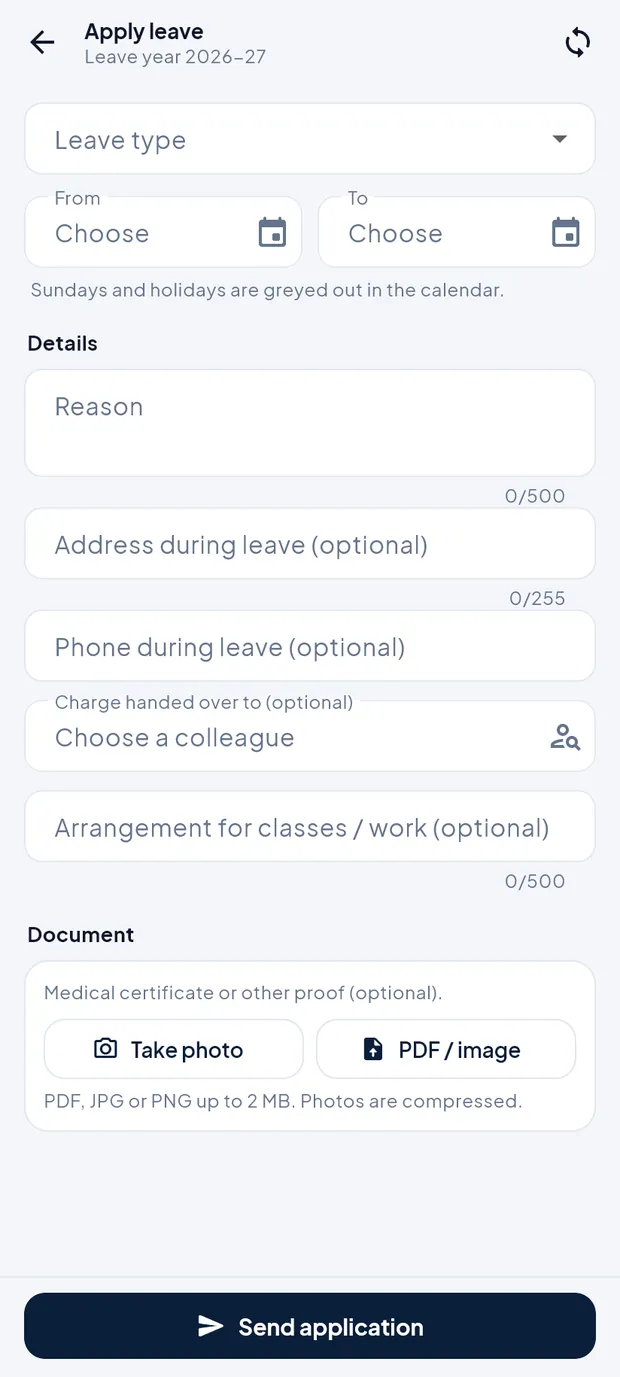
Apply leave form. Type the Reason: Family function in my hometown (Varanasi).
Fill the optional fields: Address during leave, Phone during leave, Charge handed over to (choose a colleague) and Arrangement for classes / work.
If needed, attach proof under Document with Take photo or PDF / image (PDF, JPG or PNG up to 2 MB; this needs internet).
Check the leave summary and tap Send application. Offline the application is saved on the phone and sent when you sync.
TipIf the leave covers your timetable periods, the app lists them; note them in the arrangement so a substitute can be planned.
TipA returned application shows the approver's remark; tap Edit & resubmit to correct and send it again.
Withdraw, cancel or report joining
In My applications, tap Withdraw on a pending application and confirm. It is removed from the approver's list.

Pending CL application with Withdraw. For approved leave you no longer need, tap Request cancellation, choose the days to cancel and give a reason, then tap Send request. The approver decides on it.
After the leave, tap Joining report and pick the date you joined duty. Joining early gives back the unused days.
Approve staff leave (example: Amit Kumar Mishra, CL 30–31 Oct)
Open More › Leave approvals, or tap Review in Home › Needs attention. Tabs: Pending, Recommended, Cancellations, History.
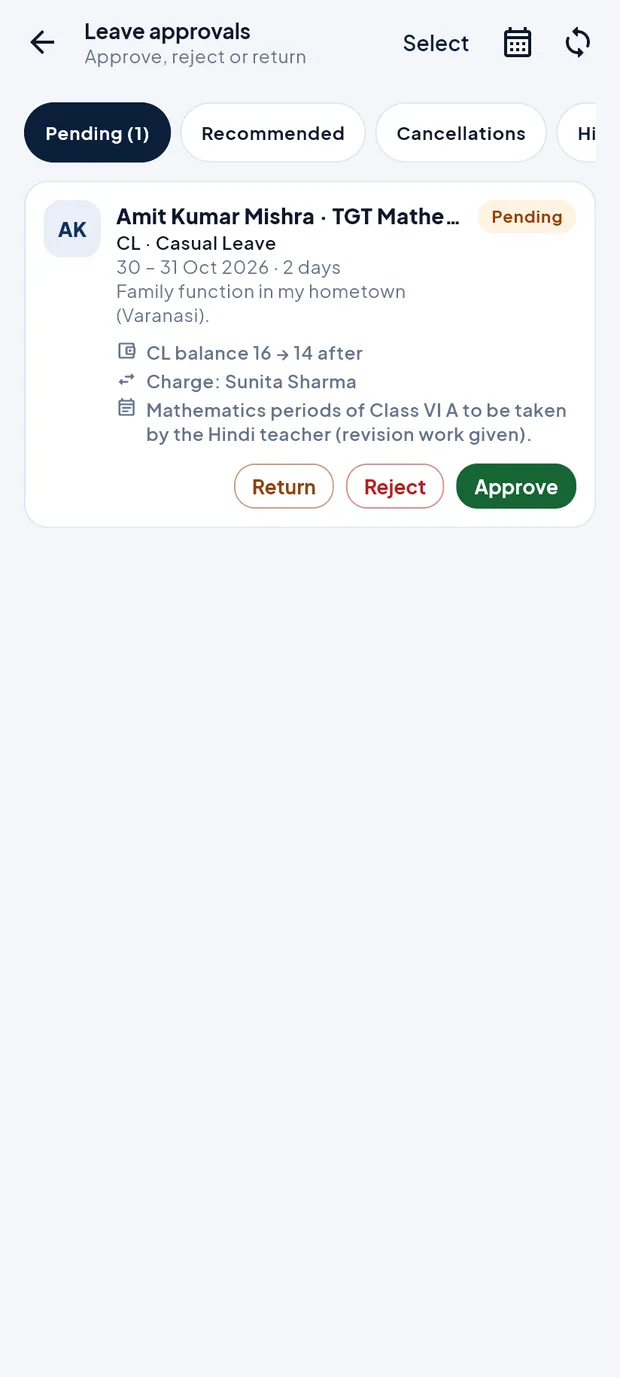
One pending application with Return, Reject and Approve. Read the card: leave type, dates, reason, the balance before and after (CL 16 → 14 after), who holds charge and the arrangement for classes.
Tap the card to see all details, including address and phone during leave.

Leave application detail. Tap Approve, reject or return. In the sheet, add a remark if you wish.
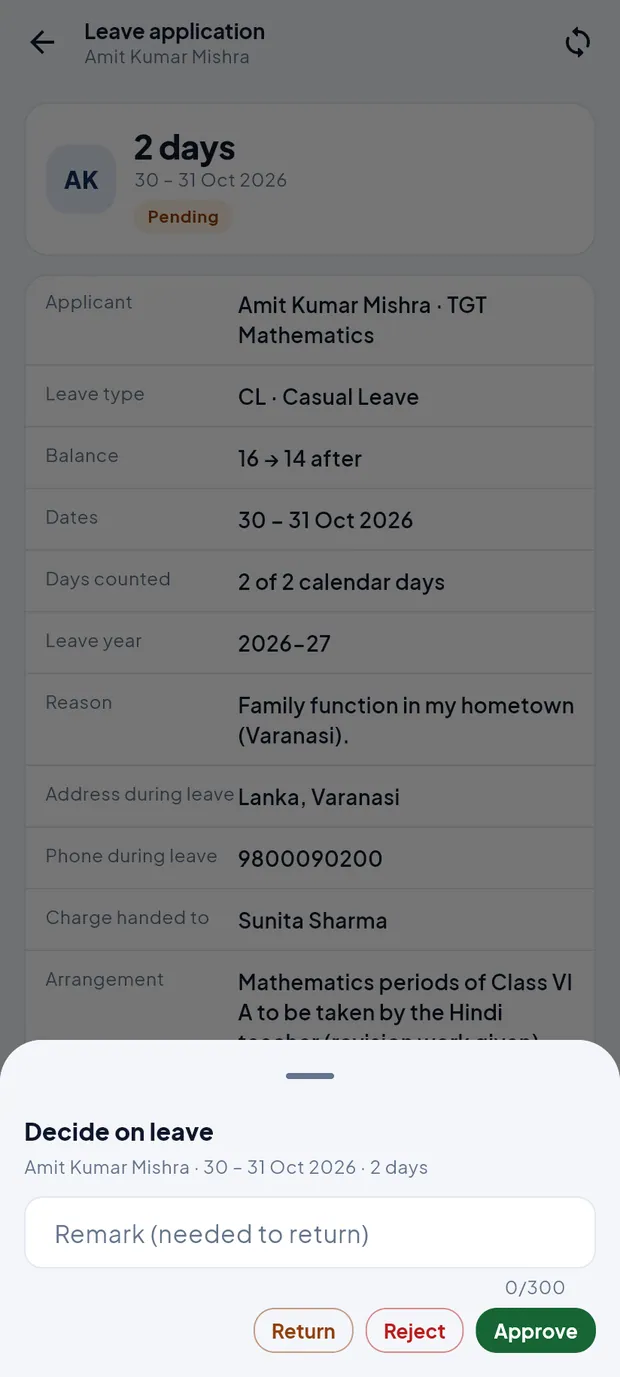
Decide on leave sheet. Tap Approve. Or tap Reject, or Return to send it back for correction (a remark is needed to return).
To approve several at once, tap Select at the top, tick the applications and tap Approve selected.
TipIn schools where a head of department recommends first, the recommender sees Recommend instead of Approve, and recommended applications appear under Recommended for the principal.
TipCancellation requests from staff appear under Cancellations with Approve cancellation and Refuse.
Leave calendar and holidays
Open More › Leave calendar. Tap a day to see who is on leave that day.
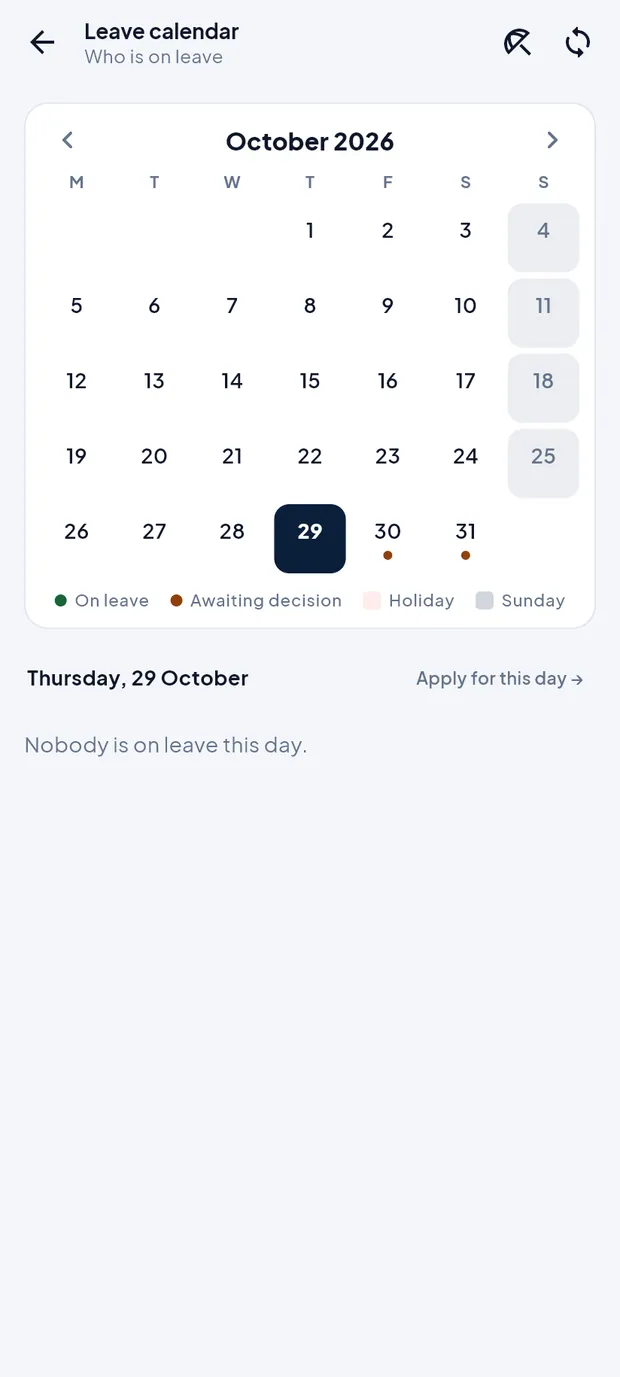
October 2026 with leave and awaiting-decision dots. Tap the umbrella icon, or More › Holidays, for the school holiday list.
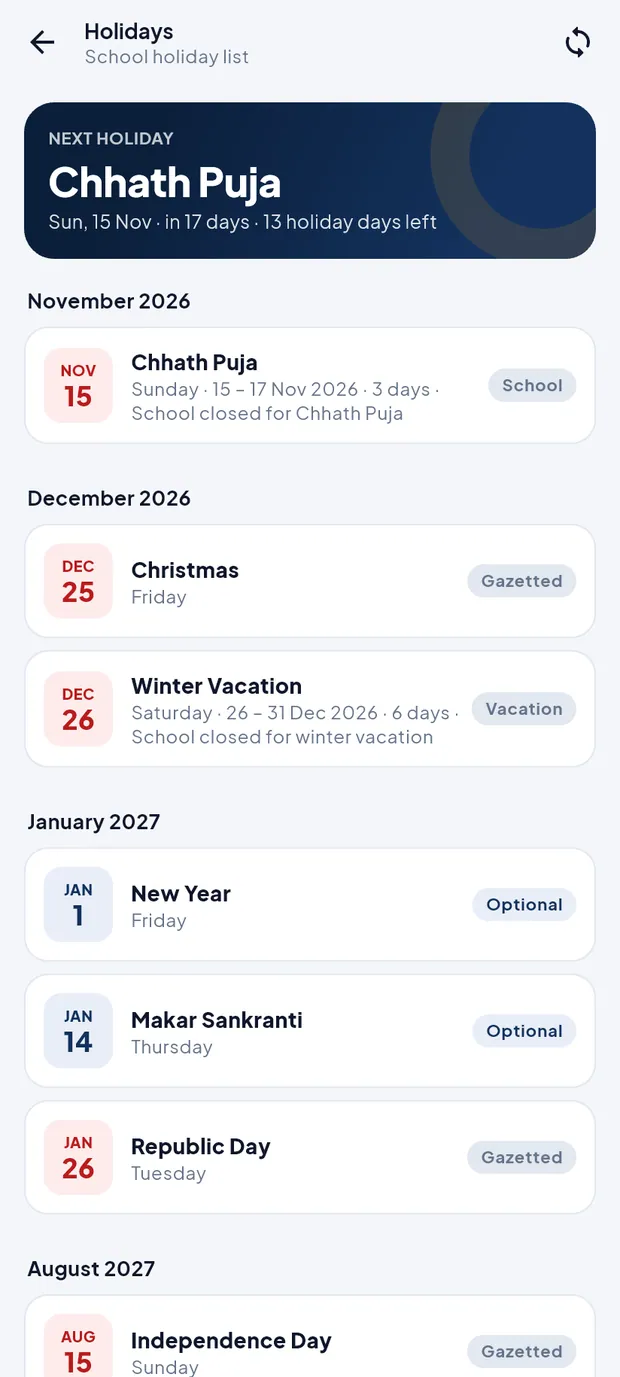
Next holiday: Chhath Puja.
- On leave / Awaiting decision
- Green dot: approved leave on that day. Orange dot: an application not yet decided.
- Holiday / Sunday
- Shaded days are school holidays or Sundays (and Saturdays off, if the school has that rule).
- Apply for this day →
- Opens Apply leave with the chosen day filled in.
- Holiday tags
- School, Gazetted, Optional and Vacation. Optional holidays are not off days for staff.
Questions
My balance looks wrong.
Balances come from the school server after a sync. Credits and the leave rules are set on the website (Staff › Leave Management). Ask the office if the numbers still differ.
Where do parents' leave requests go?
To the class teacher, under Leave approvals (Student leave requests of your class). See the Teacher guide.