 CoreAxis School ERP
Admin & Principal · Chapter 18
Settings, sync and security
The More tab and the side menu hold your profile, the school card and the settings of the app. Here you check that your work has reached the school server, change your password, see which phones and browsers are trusted, and lock the app. These settings are the same for every staff role; parents have the sync, lock and fingerprint settings too.
Your profile and the school card
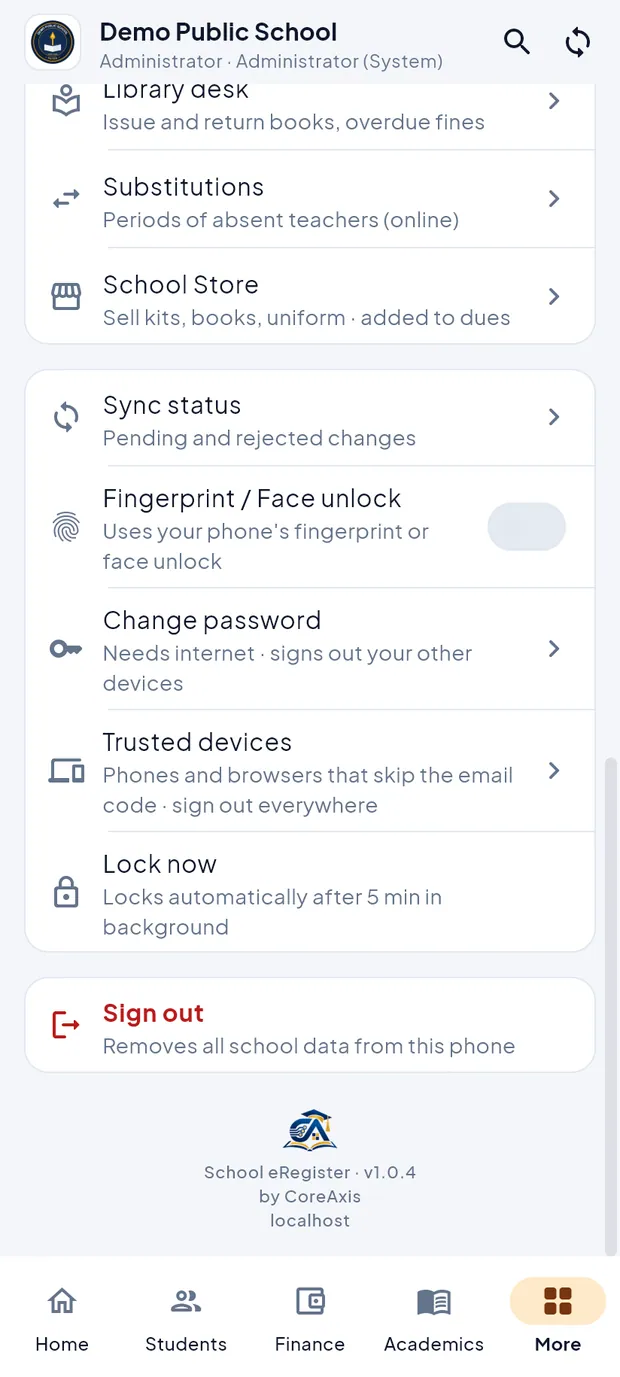
Open More in the bottom bar (or My profile in the side menu). The top card shows your name, Role, Email and Phone. The card below shows the school, its address, phone and email, the session (for example Session 2026-27) and the subscription: Active, Trial, Grace period or Expired, with the date it runs Until. To change your phone number or other details, ask the school office; they are changed on the website.
The More tab of the Administrator: profile card and school card.
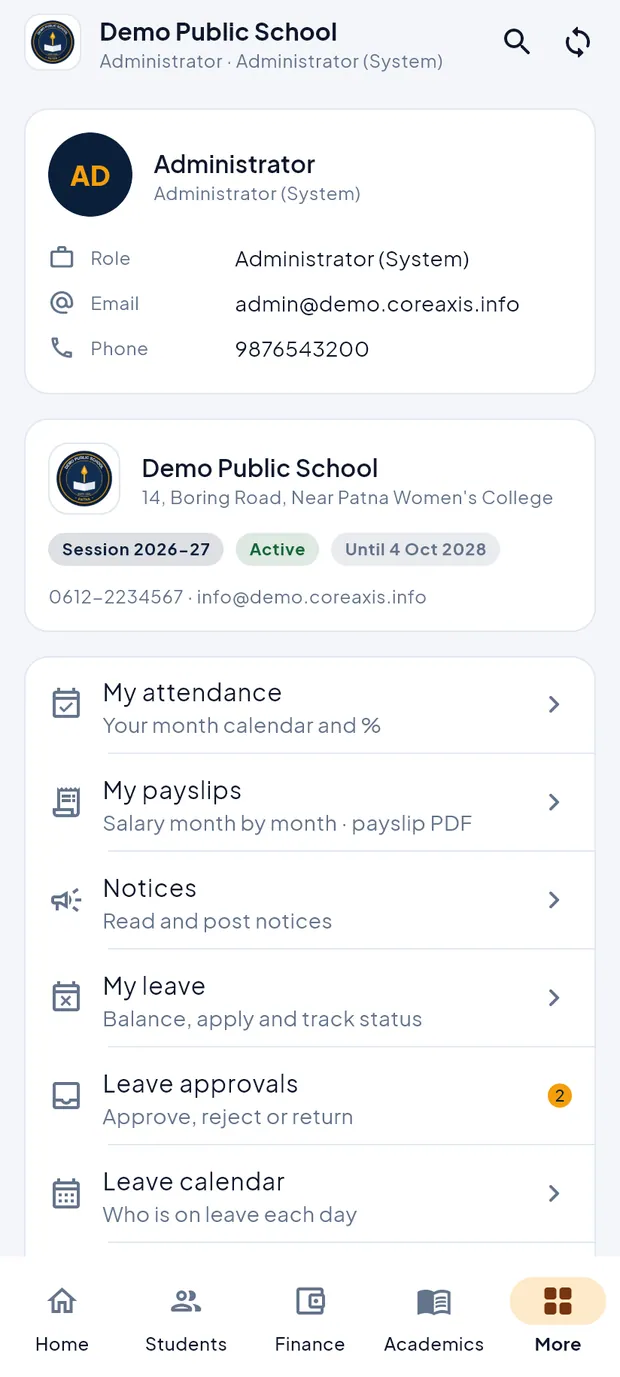
More: profile, school card with Session 2026-27, Active, Until 4 Oct 2028.
Check that your work has synced (example: after collecting fees offline)
Work saved without internet waits on the phone until it reaches the school server. Check it before you sign out or hand the phone to someone else.
Tap More and then Sync status. You can also long-press the sync button in the header.
Read the top card. Up to date with Last synced and a time means the phone has the latest data.
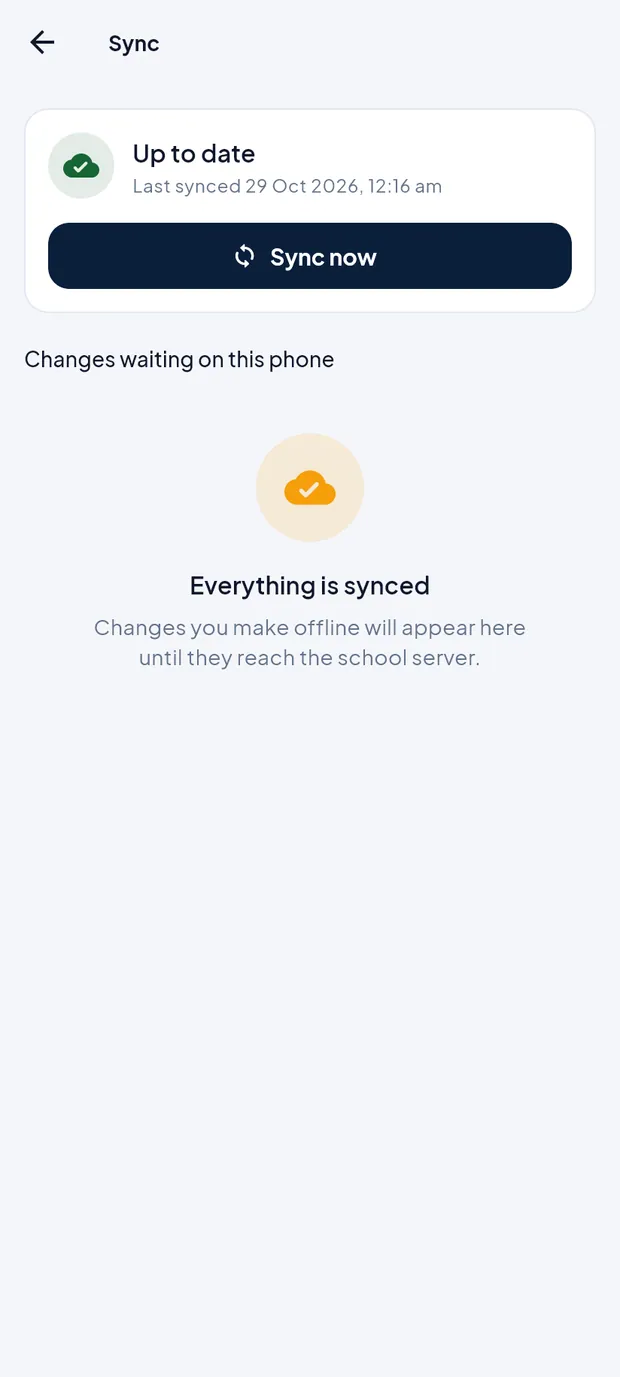
Sync: Up to date and Everything is synced. If there is internet, tap Sync now to sync at once. Without internet the button shows Offline.
Look at Changes waiting on this phone. Everything is synced means nothing is waiting. Otherwise each change is listed, for example Fee collection or Attendance, with the time it was saved and the tag Pending.
If a change has the tag Rejected, read the reason under it. Tap Try again after the problem is fixed, or Discard to remove the change from the phone.
TipThe app syncs by itself when you open it, when the internet comes back and a few seconds after you save something.
TipA red badge on the sync button means a change was rejected. Open Sync status to see it.
ImportantDiscard removes the change from the phone and it is never sent. Use it only when you are sure the change is not needed, for example a duplicate entry.
School details and Recent activity
School details in the side menu shows the school's address, phone, email, academic session, subscription and who is signed in. Tap the phone or email to call or write to the school. Admin / Principal also have Recent activity: on Home, tap See all next to Recent activity to see the latest fee receipts, attendance, leave requests and notices. If the phone cannot reach the server, the list shows the saved data.
School details sheet.

School details: address, phone, email, session, subscription and Signed in as. Recent activity list.
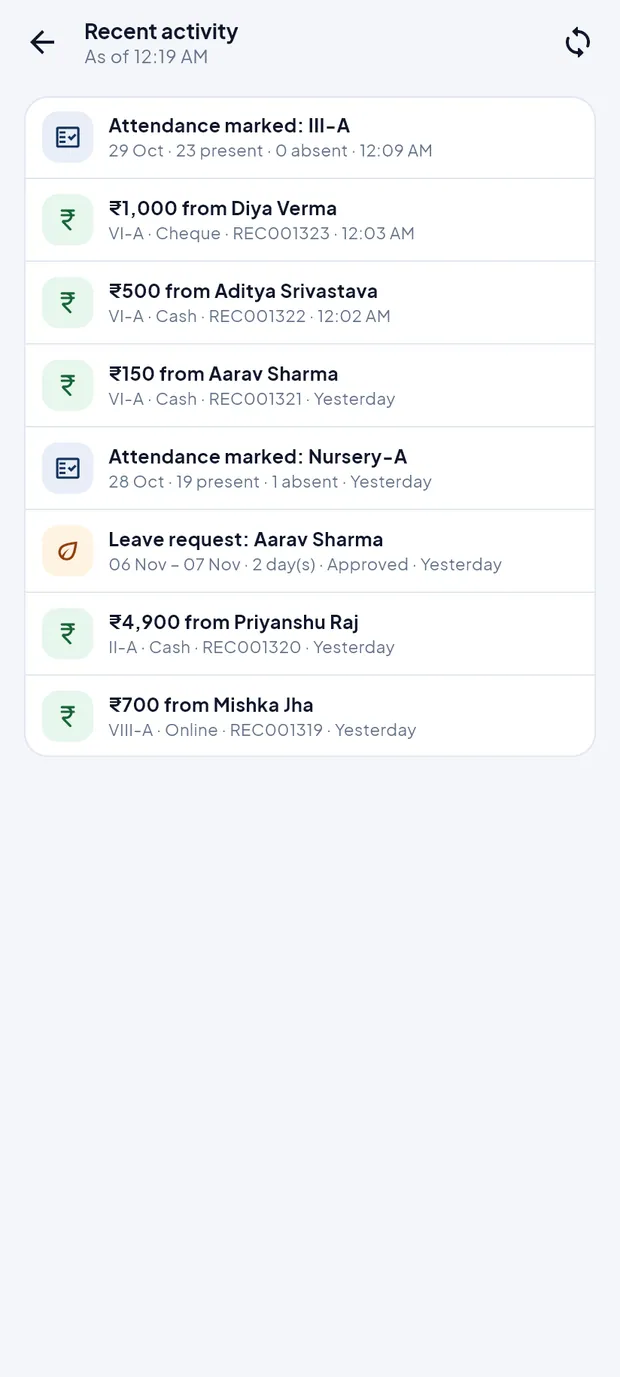
Recent activity: payments, attendance and leave, newest first.
Change your password (example: the Administrator)
Changing the password needs internet. You stay signed in on this phone; every other phone and browser is signed out.
Tap More and then Change password, or use Change password in the side menu.
Type your present password in Current password (••••••••).
Type the new password in New password. The bar under it shows the strength. It needs at least 8 characters with an uppercase letter, a lowercase letter and a number.
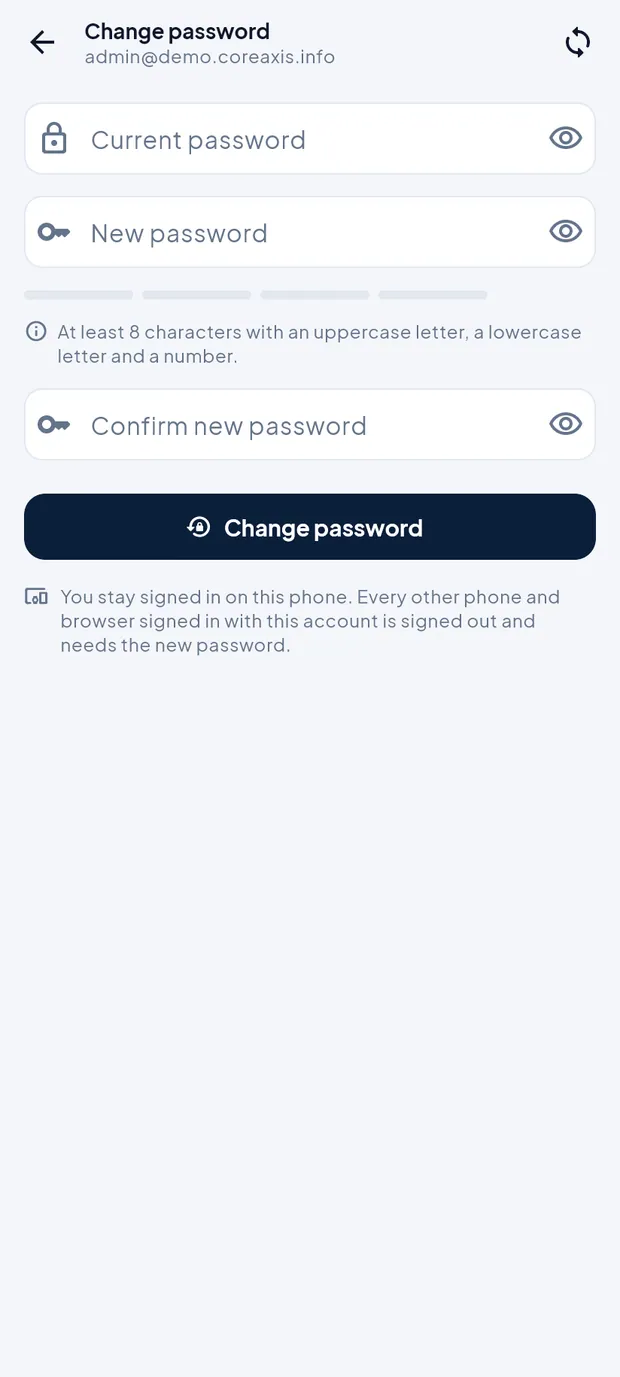
Change password with the strength bar and rules. Type it again in Confirm new password.
Tap Change password. The app shows that the password was changed and that other phones and browsers were signed out.
TipChanging the password also removes every trusted device, so other phones need the password and the email code again.
TipUse the new password on the website too; it is the same account.
Trusted devices (example: removing an old browser)
A trusted device is a phone or browser where you ticked Trust this device for 30 days after the email code. It signs in without a code until the date shown. Needs internet.
Tap More and then Trusted devices.
Read the list. Each entry shows Mobile app or Web browser, when it was last used and until when it is trusted. Your phone is tagged This phone; PIN set means PIN sign-in is on.
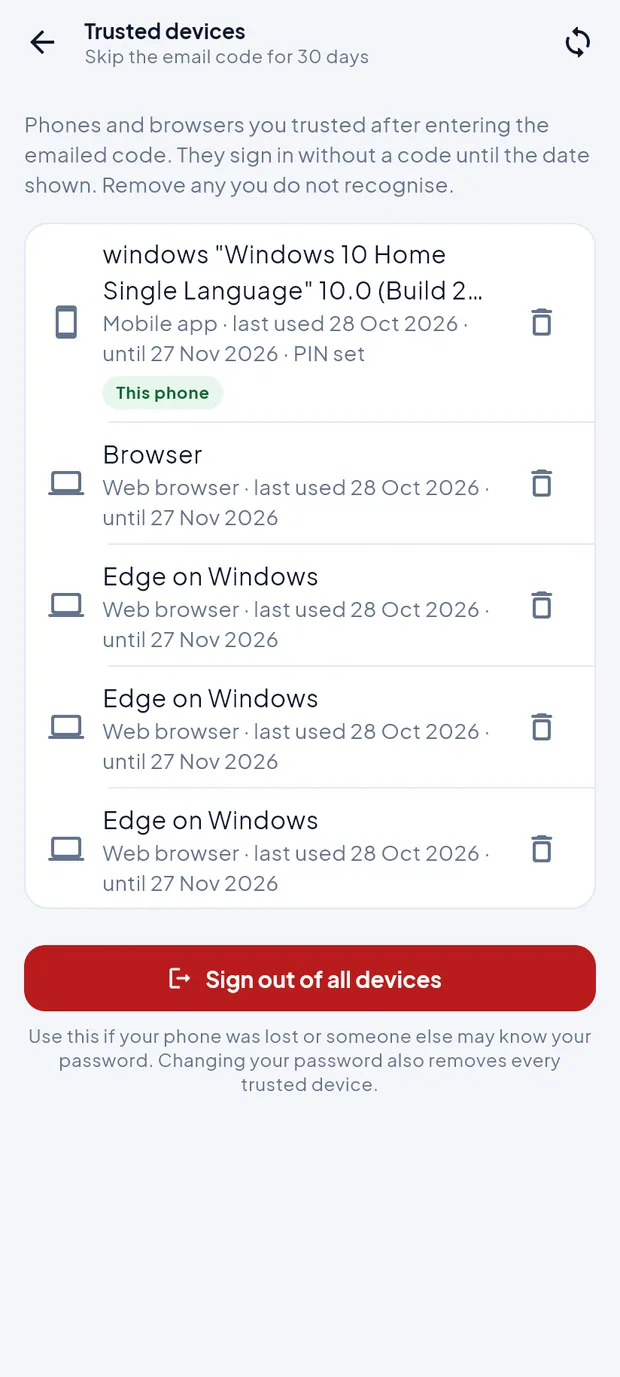
Trusted devices with This phone and Sign out of all devices. Tap the bin icon next to a device you do not recognise.
Tap Remove to confirm. That device needs the password and an email code at the next sign-in.
ImportantSign out of all devices signs out every phone and browser on your account, including this one, and removes all trusted devices and PINs. Unsynced changes on this phone are lost. Use it if your phone is lost or someone else may know your password.
Lock the app and use fingerprint (example: leaving the phone on the office desk)
Tap More and then Lock now, or Lock app now in the side menu. The lock screen appears at once.
To come back, type your PIN on Enter your PIN to unlock.
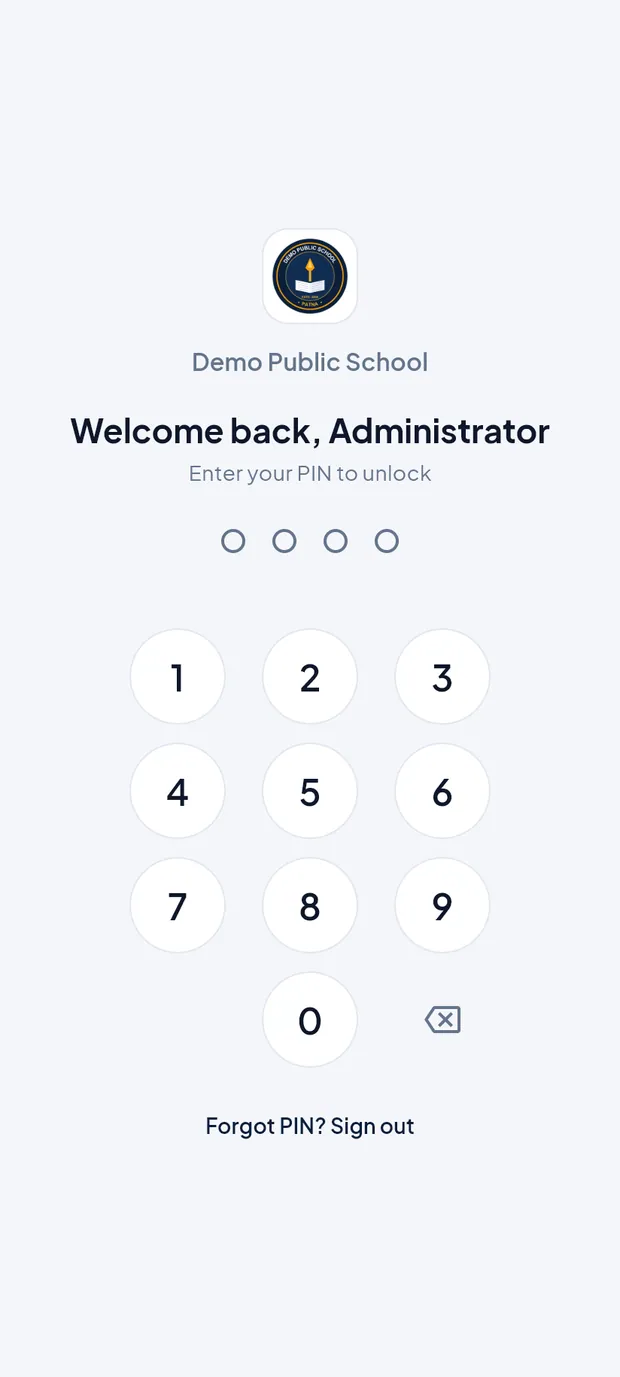
The lock screen asks for your PIN. To unlock with a fingerprint or face, switch on Fingerprint / Face unlock in More or the side menu, then confirm your fingerprint or face when the phone asks.
TipThe app also locks by itself when it starts and after 5 minutes in the background.
TipFingerprint / Face unlock uses what is already set up in the phone's settings. The PIN always works too.
Display settings in the side menu
Open the side menu by tapping the school name on Home and scroll to Security & display.
- Hide amounts
- Shows ₹ •••• instead of figures on Home. Useful when parents or visitors can see the screen. The eye button on the fees card does the same.
- Auto / Light / Dark
- The colour theme. Auto follows the phone's setting.
- Contact school office
- Calls or emails the school office.
- Call CoreAxis support
- Calls CoreAxis support. WhatsApp support and Email support are below it.
More tab settings at a glance
- Sync status
- Pending and rejected changes, last sync time and Sync now.
- Fingerprint / Face unlock
- Switch to unlock with the phone's fingerprint or face.
- Change password
- Needs internet. Signs out your other devices.
- Trusted devices
- Phones and browsers that skip the email code; Sign out of all devices.
- Lock now
- Locks the app at once. It also locks after 5 minutes in the background.
- Sign out
- Removes all school data from this phone. See Sign in, PIN and sign out.
- Version line
- At the very end, for example School eRegister · v1.0.4 by CoreAxis. Give this number when you call support.
Questions
Sync status shows changes that stay Pending.
The phone has no internet, or the server is not reachable. Connect to Wi-Fi or mobile data and tap Sync now. If the strip says Subscription expired · read-only, the changes stay on the phone until the school renews.
I changed my password on the website. Do I need to do anything in the app?
Other phones are signed out after a password change. Sign in again in the app with the new password and the email code.
Can I turn off the app lock?
No. The PIN protects the school data on the phone. You can use fingerprint or face unlock to make it quicker.